



Building Your First PC: A Beginner’s Component Guide

Assembling your own personal computer can seem intimidating if you’ve never built one before, but it’s an achievable goal for anyone willing to learn the basics. The satisfaction of pressing the power button on a machine you built yourself is unmatched. The key to success lies in understanding what each component does and how they work together. Computer building has become increasingly accessible thanks to modular designs and abundant online resources. When you’re ready to start your project, PC components from trusted retailers will make a significant difference in your build’s reliability and longevity. Quality components ensure stable operation for years rather than experiencing early failures or performance limitations.
Starting with the Right CPU and Motherboard
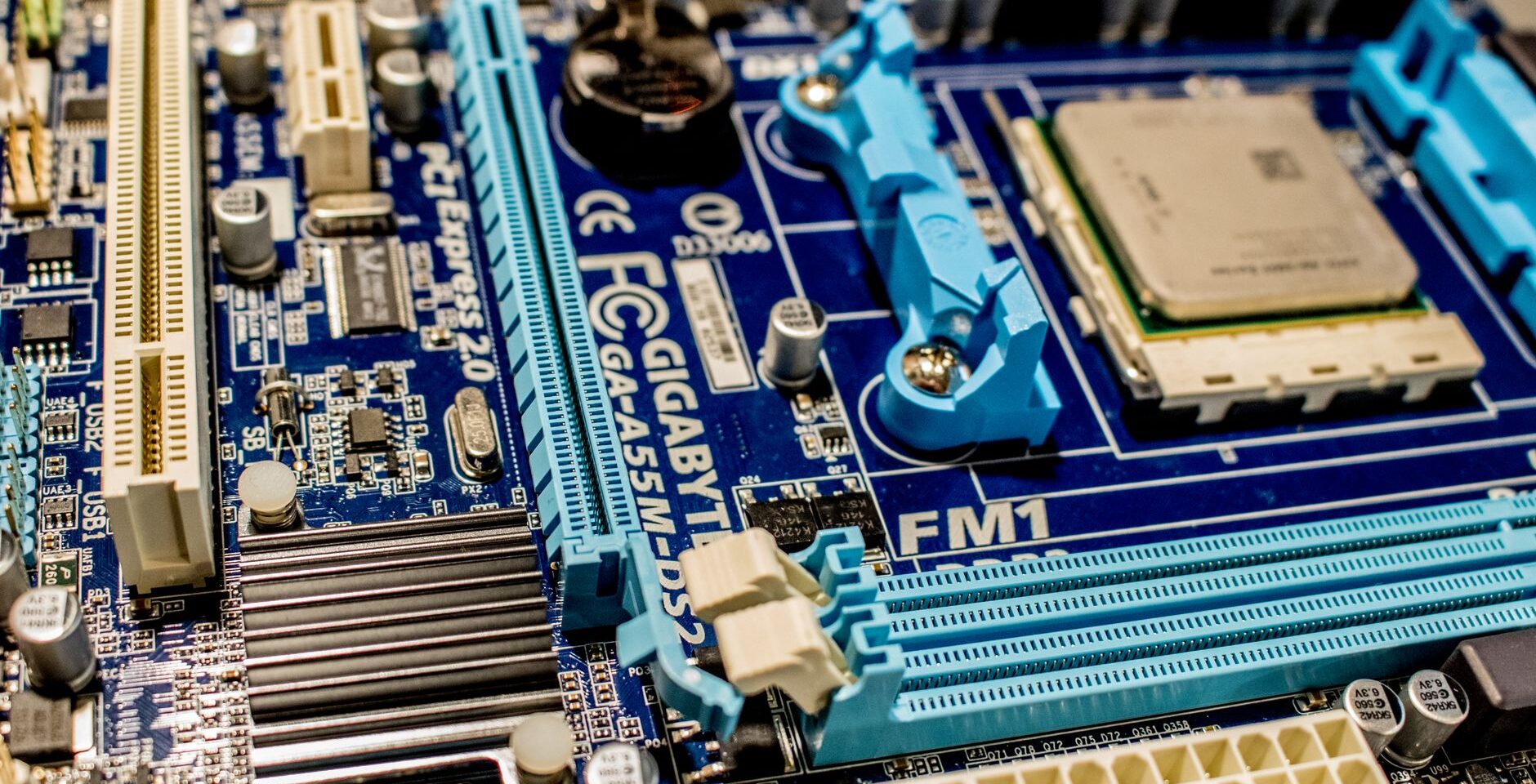
The processor and motherboard form the foundation of any computer system. Your CPU determines how fast your computer processes information, while the motherboard serves as the central hub connecting all components. These two parts must be compatible—a CPU won’t fit into the wrong socket type on a motherboard. Socket types have changed dramatically over the years: AM5, LGA1700, and LGA1150 each require specific CPUs. When selecting quality components, ensure the motherboard has enough slots and connectors for your planned configuration. Modern motherboards offer multiple PCIe slots for graphics cards, NVMe M.2 slots for storage, and SATA connections for traditional drives. The motherboard manual becomes your best friend during building—keep it nearby throughout the assembly process.
Memory and Storage Decisions
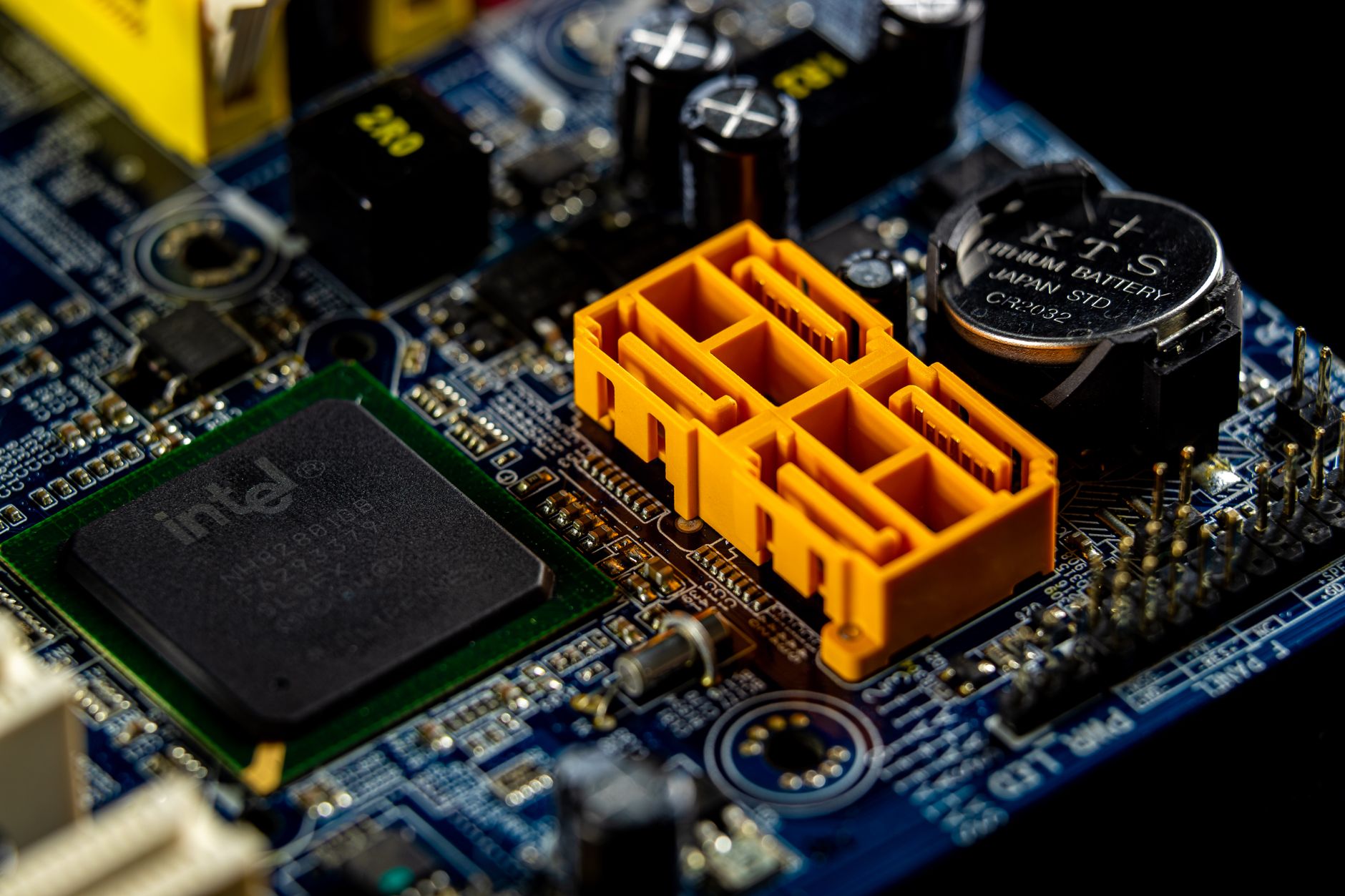
RAM speeds up how many tasks your computer can handle simultaneously. For everyday use and light gaming, 16GB is a solid starting point. Heavy multitasking or content creation benefits from 32GB or more. DDR5 memory represents the current standard for new builds, though DDR4 remains viable and more affordable. Storage drives come in two main types: traditional hard drives offer more space at lower cost, while solid-state drives provide faster performance. Many builders choose to combine both, using an SSD for the operating system and fast-loading applications, plus a larger hard drive for file storage. An NVMe M.2 SSD provides the fastest performance—sometimes 10x faster than SATA SSDs. The speed difference becomes apparent every time your system boots or launches applications. Consider a 500GB to 1TB NVMe drive for your operating system and primary applications, supplemented by larger capacity storage for files.
Power Supply and Cooling System
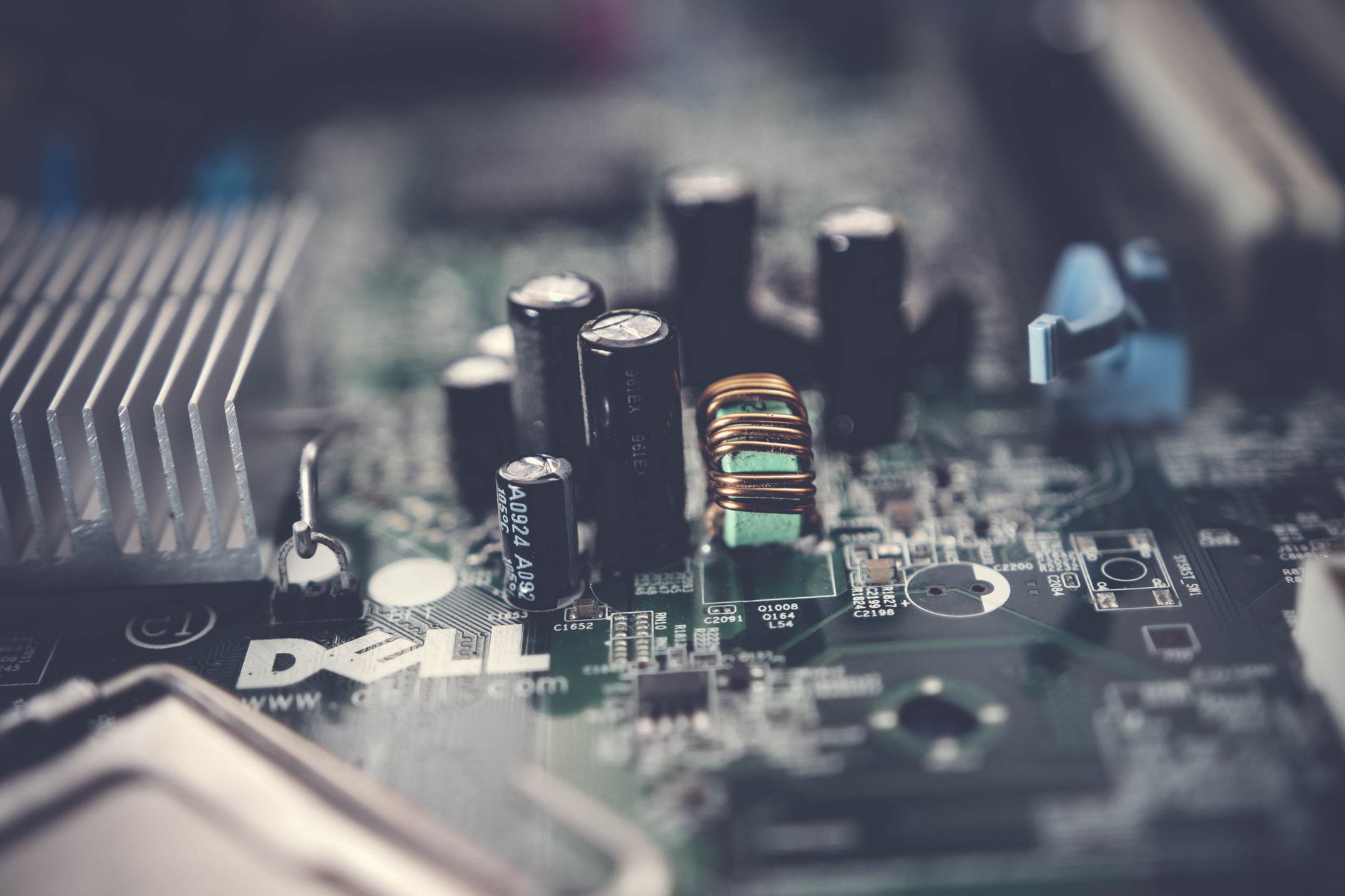
The power supply unit delivers electricity to every component in your system. Never skimp on this part—a quality power supply protects your expensive components from electrical damage and provides stable power delivery. Look for 80+ Bronze certification at minimum, preferably Gold or Platinum for better efficiency and quieter operation. Cooling is equally important. Your CPU requires either an air cooler or liquid cooling solution to prevent overheating. Modern computers generate substantial heat from high-performance processors. Air coolers like tower designs offer simplicity and reliability without maintenance demands. Liquid cooling provides superior thermal performance but requires periodic maintenance and carries slight leak risk. An adequate power supply should provide at least 80% of your system’s theoretical power draw, giving headroom for surges and component efficiency variations. High-quality capacitors and protection circuits ensure your valuable components remain safe during power fluctuations.
Graphics and Expansion Capabilities
Your graphics processing unit handles display output and visual rendering. Integrated graphics, built into many CPUs, suffice for office work and web browsing. If you plan gaming or 3D rendering work, a dedicated graphics card becomes essential. High-end graphics cards consume significant power and generate heat, so adequate cooling and power supply become critical. Premium PC components include various expansion slots for future upgrades—a factor worth considering when evaluating motherboard options. Modern cases support multiple graphics cards in some configurations, though most builds need only one. VRAM matters significantly for modern gaming—8GB serves as minimum, while 12GB or 16GB enables higher settings and faster performance.
Case Selection and Cable Management
Your case houses all components and provides cooling airflow. Proper case selection affects both aesthetics and performance. Cases with good airflow keep components cooler and quieter. Front panel connectors for power button, LED lights, and USB ports differ by motherboard, so verify compatibility. Cable management—routing power cables neatly—improves airflow and makes future upgrades easier. High-quality cases include tool-free drive bays and efficient cable routing solutions.
Assembly Preparation and Safety
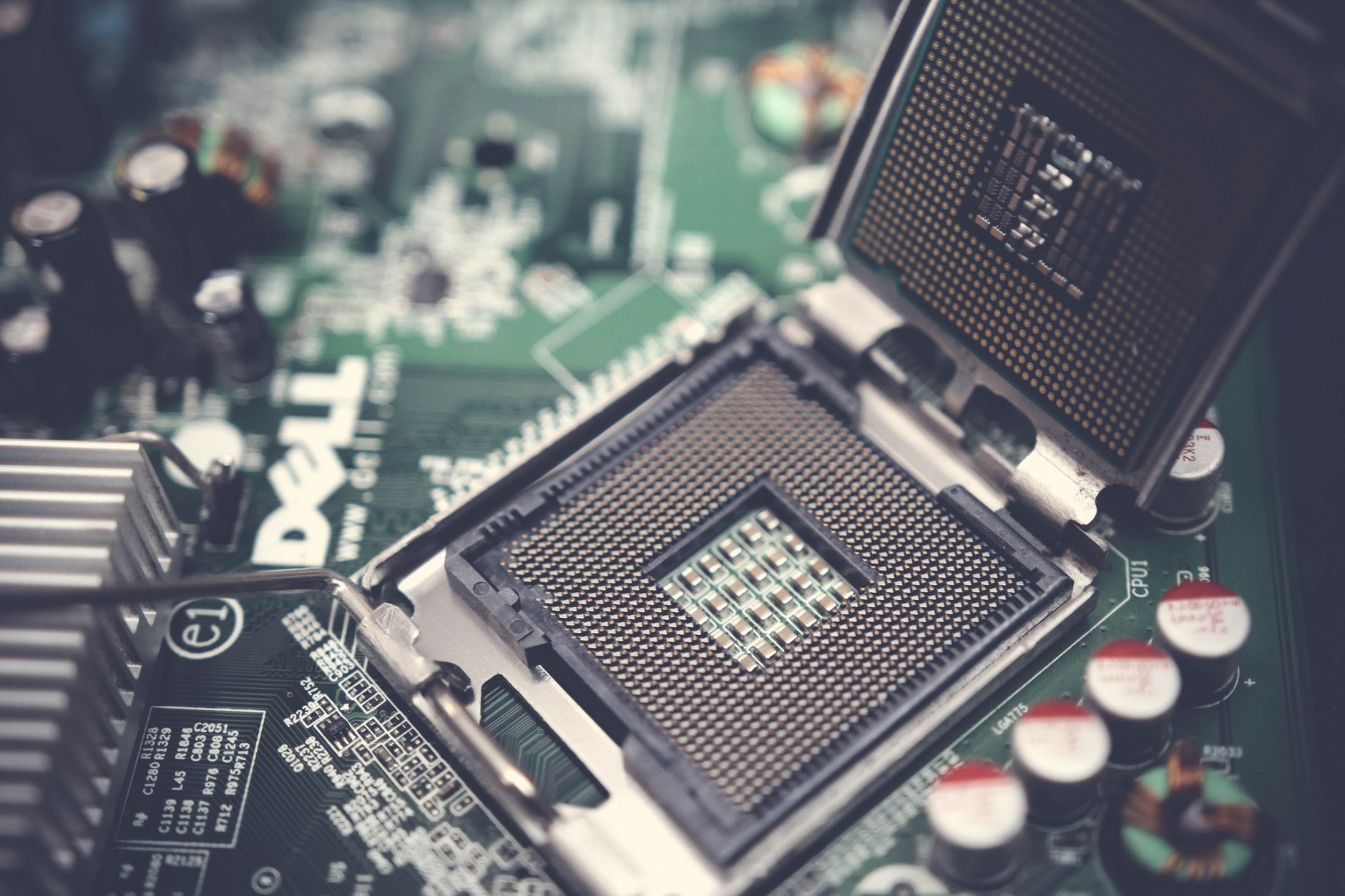
Before touching any components, ground yourself to avoid static electricity damage. Work on a clean, non-carpeted surface and keep the manual for your motherboard nearby. Take your time—computer assembly isn’t a race. Each component fits in only one correct way, so forcing anything is a clear warning sign you’ve got something wrong. Proper installation from the start saves troubleshooting headaches later. Orient your RAM sticks correctly before inserting—they only fit one way due to keying notches. CPU installation requires extreme care to avoid bending delicate pins or gold contacts. Apply thermal paste according to manufacturer recommendations—too much interferes with heat transfer while too little leaves hot spots.
Testing and Troubleshooting Your Build
Once assembled, your first startup is a critical moment. Connect everything, flip the power switch, and listen. Your computer should boot without error messages and begin loading the operating system. If issues arise, start with simple solutions—reseat RAM sticks, check cable connections, and verify all power connectors are fully inserted. Common startup failures often result from loose RAM or disconnected CPU power. Clear CMOS resets BIOS settings if nothing seems to work. Reputable component suppliers often provide excellent support if you encounter genuine hardware failures. Building computers teaches fundamental technology knowledge valuable for troubleshooting future issues.
- Thermal paste helps CPUs maintain consistent temperatures and should be applied sparingly in a small dot pattern
- Cable management improves airflow and simplifies future upgrades and component replacement
- Backup drivers before installation for smooth operating system setup and hardware recognition
- Document your component serial numbers for warranty purposes and future reference tracking
- Join online communities like Reddit’s buildapc for real-world building advice and specific troubleshooting
Building your own computer opens possibilities for customization and learning that store-bought systems cannot match. Starting with quality components means fewer problems and greater satisfaction with your final system.